
Debugging Modifiers
If you want to write a script that reacts to a specific ability or status effect, the first thing you need to know is which modifier or flag the engine sets when that effect is active. The cheat ships with built-in logging that prints every state change in real time.
Enabling modifier state logging
Open the Dev Studio window via the bug icon on the top navbar. Inside Dev Studio, go to the Tools tab and enable:
- Modifier States (Dev Tools card): logs every flag bit that flips on or off
- In-App Console (Console card): opens the script console window where logs print
Optional but useful:
- Local Modifier Events / Enemy Modifier Events: log full modifier additions and removals (RTTI name + token) instead of just the bitmask flags
- Modifier Details: pretty-prints the full modifier table when one is added
Example: finding the flag for Haze's Smoke Bomb
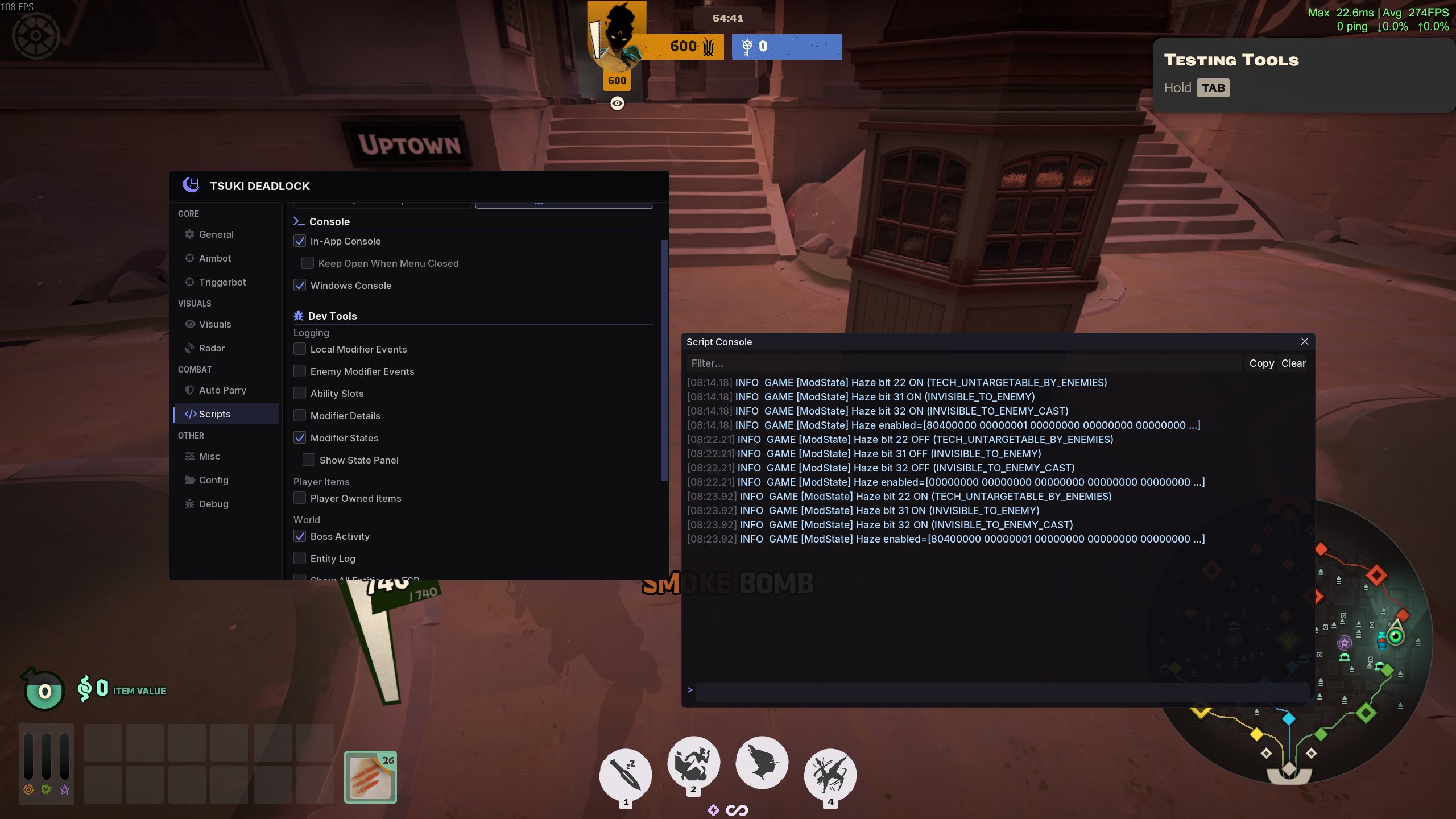
With Modifier States enabled, watch the console while the effect you care about happens. Here's what shows up when Haze casts Smoke Bomb:
Click to enlarge.
Three flags toggle on at the same time when Smoke Bomb starts:
[ModState] Haze bit 22 ON (TECH_UNTARGETABLE_BY_ENEMIES)
[ModState] Haze bit 31 ON (INVISIBLE_TO_ENEMY)
[ModState] Haze bit 32 ON (INVISIBLE_TO_ENEMY_CAST)
And then back off when it ends:
[ModState] Haze bit 22 OFF (TECH_UNTARGETABLE_BY_ENEMIES)
[ModState] Haze bit 31 OFF (INVISIBLE_TO_ENEMY)
[ModState] Haze bit 32 OFF (INVISIBLE_TO_ENEMY_CAST)
For our purposes, INVISIBLE_TO_ENEMY (bit 31) is the cleanest signal. It's set whenever an enemy is invisible to us, regardless of which ability or item caused it. Smoke Bomb, Shadow Weave, etc. all flip this bit.
Practical example: pause aimbot on invisible targets
If your aimbot is locking onto a Haze who just popped Smoke Bomb, locking onto an invisible Haze reveals the aimbot to the enemy team. Here's a script that disables the aimbot while any visible enemy is invisible, and re-enables it when they come back:
local aimbot_was_on = nil  -- nil = haven't toggled yet

function on_tick()
    local invisible_enemy = false
    for _, p in ipairs(get_players()) do
        if p:is_enemy() and p:is_alive()
           and p:has_modifier_flag(modifier_flag.INVISIBLE_TO_ENEMY) then
            invisible_enemy = true
            break
        end
    end

    if invisible_enemy and aimbot_was_on == nil then
        -- First tick we noticed an invisible enemy: remember the
        -- user's current setting and turn aimbot off.
        aimbot_was_on = tsuki.get_bool("aimbot_enabled", false)
        tsuki.set_bool("aimbot_enabled", false)
    elseif not invisible_enemy and aimbot_was_on ~= nil then
        -- Invisibility ended: restore whatever the user had before.
        tsuki.set_bool("aimbot_enabled", aimbot_was_on)
        aimbot_was_on = nil
    end
end
The state variable (aimbot_was_on) is what makes this safe. Without it, the script would force aimbot ON every tick the enemy is visible, overriding the user's own toggle. By recording the previous value, we only restore what was there before.
You can use the same pattern for any other flag-driven decision: pause auto-parry while the enemy is STUNNED (no point parrying a stunned target), pause ESP particles while you're in IN_FOUNTAIN to keep your screen clean, etc.
When the flag isn't reliable
Some effects don't set the flag you'd expect. SLOWED is the most common offender: many slow sources apply the effect via stat modifiers without ever tripping the flag. If your debugging shows nothing toggling for an effect that's clearly active, fall back to checking the modifier list directly:
for _, m in ipairs(player:get_modifiers()) do
    print(m.name, m.token)
end
Then match by name or token. See Player > Modifiers for the full API.
Debugging bones
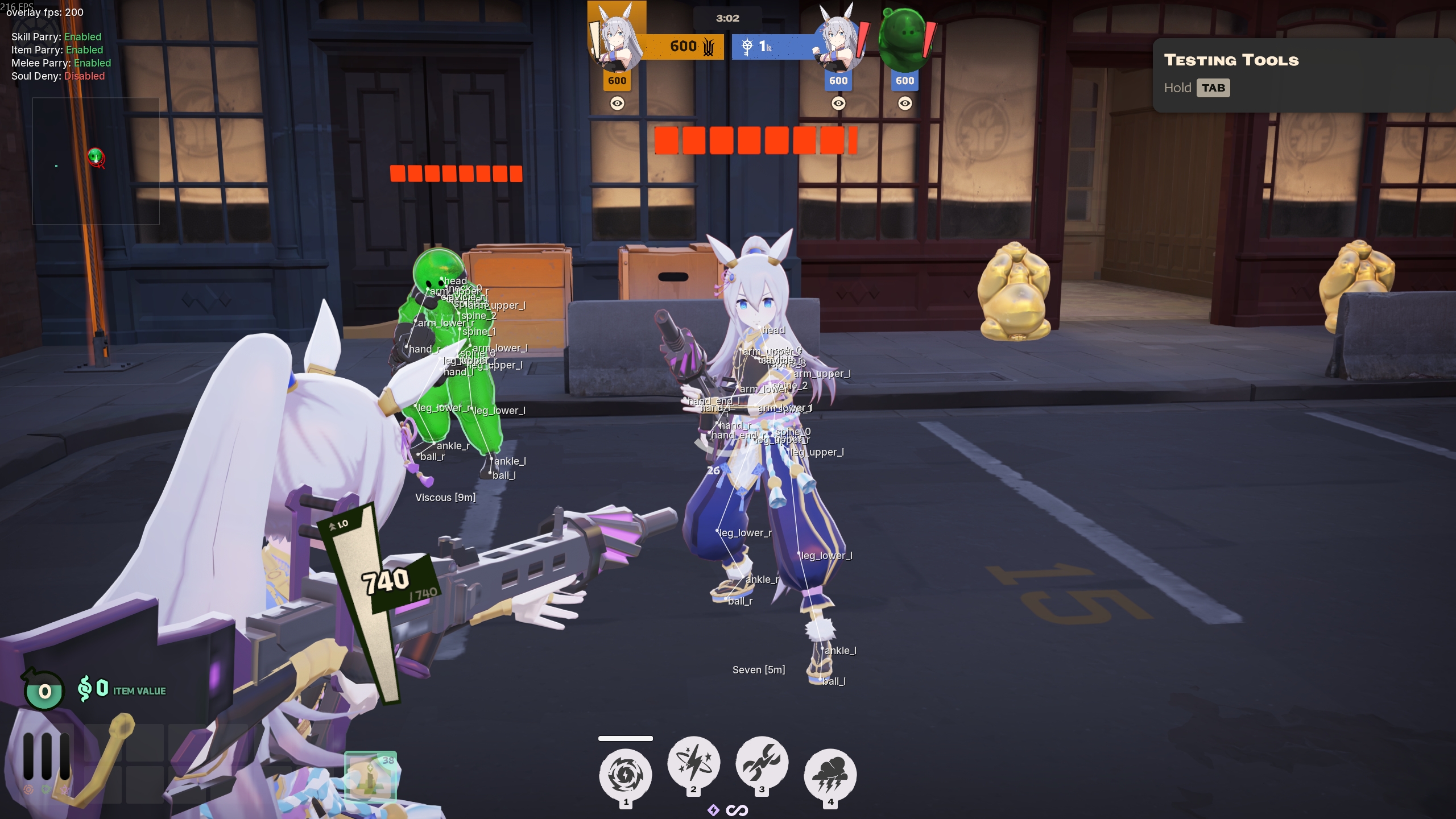
The bone system uses string names like "head", "arm_upper_l", "ankle_r". The available bones vary between heroes (Talon has weapon bones, Viscous has ball bones, etc.). To see what's actually on a hero's skeleton, enable the bone label overlay in the Dev Studio window (navbar bug icon) > Bones tab > Skeleton Joint Labels.
Click to enlarge.
Every joint shows its bone name in real time. Use this to identify the right bone name for aim points, hitbox checks, or 3D draw calls. Bones are parsed from Deadlock's VPK files at startup. Custom mods loaded through Deadlock Mod Manager are included.
To enumerate the bones on a hero from a script instead of looking at the labels, call player:bone_names():
for _, name in ipairs(player:bone_names()) do
    print(name)
end
See Types & Constants > bone for the full list of named aliases and body-bone constants.
Discovering particle names
The particle event API (on_particle_create, on_particle_destroy) matches against full particle paths like "particles/abilities/melee/melee_heavy_activate_charge.vpcf". To find the path for a specific ability or action, open the Dev Studio window (navbar bug icon) > Tools tab, and enable Console Logging under the Particle Logger card.
The logger logs every [Particle] Create and [Particle] Destroy event to both the in-app console and the attached Windows console. Useful toggles under Particle Logger:
- Include All Particles, shows every particle in the game, including towers, NPCs, and environment. Noisy; turn off when you have what you need.
- Show Position, appends world position
(x, y, z)to each log entry. - Dump Control Points, wide memory scan of the particle collection. Logs every float triplet that looks like world coordinates. Use this when researching which CP offset carries the data you need for a specific effect.
Workflow
- Enable Console Logging under Particle Logger in Dev Studio.
- Go into a sandbox or private lobby with a friend.
- Perform the action you want to detect (heavy melee, ability cast, etc.).
- Watch the console for
[Particle] Create (enemy tN) 'particles/...'lines. - Copy the relevant part of the path into your
ev.name:find("...")filter.
For a curated list of commonly-used particles, see Events > Common particle names.