
Debugging Modifiers
To react to an ability or status effect, you need the modifier or flag the game sets for it. TSUKI can log every state change as it happens.
Enabling modifier state logging
Open the Dev Studio window with the bug icon on the top navbar and enable:
- Modifier States (Modifiers tab, Modifier Events card), then Show State Panel under it: opens a window that lists the state flags each player has on, by bit number and name
- In-App Console (General tab, Console card): opens the script console window where logs print
Optional but useful, on the same Modifier Events card:
- Local Modifier Events / Enemy Modifier Events: log full modifier additions and removals (modifier name and token) instead of just the bitmask flags
Example: finding the flag for Haze's Smoke Bomb
With Show State Panel on, open Haze's row in the panel while the effect happens. When Haze casts Smoke Bomb, three flags turn on at the same time:
[ 24] ENABLED  TECH_UNTARGETABLE_BY_ENEMIES
[ 33] ENABLED  INVISIBLE_TO_ENEMY
[ 34] ENABLED  INVISIBLE_TO_ENEMY_CAST
They leave the list when it ends.
INVISIBLE_TO_ENEMY (bit 33) is the best flag to check here. It's set whenever an enemy is invisible to you, no matter which ability or item caused it. Smoke Bomb, Shadow Weave, etc. all flip this bit.
Practical example: pause aimbot on invisible targets
An aimbot that keeps tracking an invisible Haze gives itself away. This script turns the aimbot off while any living enemy is invisible, and turns it back on when they reappear:
local aimbot_was_on = nil  -- nil = haven't toggled yet

function on_tick()
    local invisible_enemy = false
    for _, p in ipairs(get_players()) do
        if p:is_enemy() and p:is_alive()
           and p:has_modifier_flag(modifier_flag.INVISIBLE_TO_ENEMY) then
            invisible_enemy = true
            break
        end
    end

    if invisible_enemy and aimbot_was_on == nil then
        -- First tick we noticed an invisible enemy: remember the
        -- user's current setting and turn aimbot off.
        aimbot_was_on = tsuki.get_bool("aimbot_enabled", false)
        tsuki.set_bool("aimbot_enabled", false)
    elseif not invisible_enemy and aimbot_was_on ~= nil then
        -- Invisibility ended: restore whatever the user had before.
        tsuki.set_bool("aimbot_enabled", aimbot_was_on)
        aimbot_was_on = nil
    end
end
aimbot_was_on remembers the user's setting, so the script restores it instead of forcing the aimbot on every tick and overriding the user's own toggle.
The same pattern works for any flag. For example, pause auto-parry while the enemy is STUNNED, or pause ESP particles while you're IN_FOUNTAIN.
When the flag isn't reliable
Some effects don't set the flag you'd expect. SLOWED is the most common case. Many slow sources apply the effect through stat modifiers and never set the flag. If no flag changes in the State Panel for an effect that is clearly active, check the modifier list directly:
for _, m in ipairs(player:get_modifiers()) do
    print(m.name, m.token)
end
Then match by name or token. See Player > Modifiers for the full API.
Debugging bones
Bones use string names like "head", "arm_upper_l", "ankle_r". The available bones vary between heroes (Talon has weapon bones, Viscous has ball bones, etc.). To see the bones on a hero's skeleton, enable the bone label overlay in the Dev Studio window (navbar bug icon) > Bones tab > Skeleton Joint Labels.
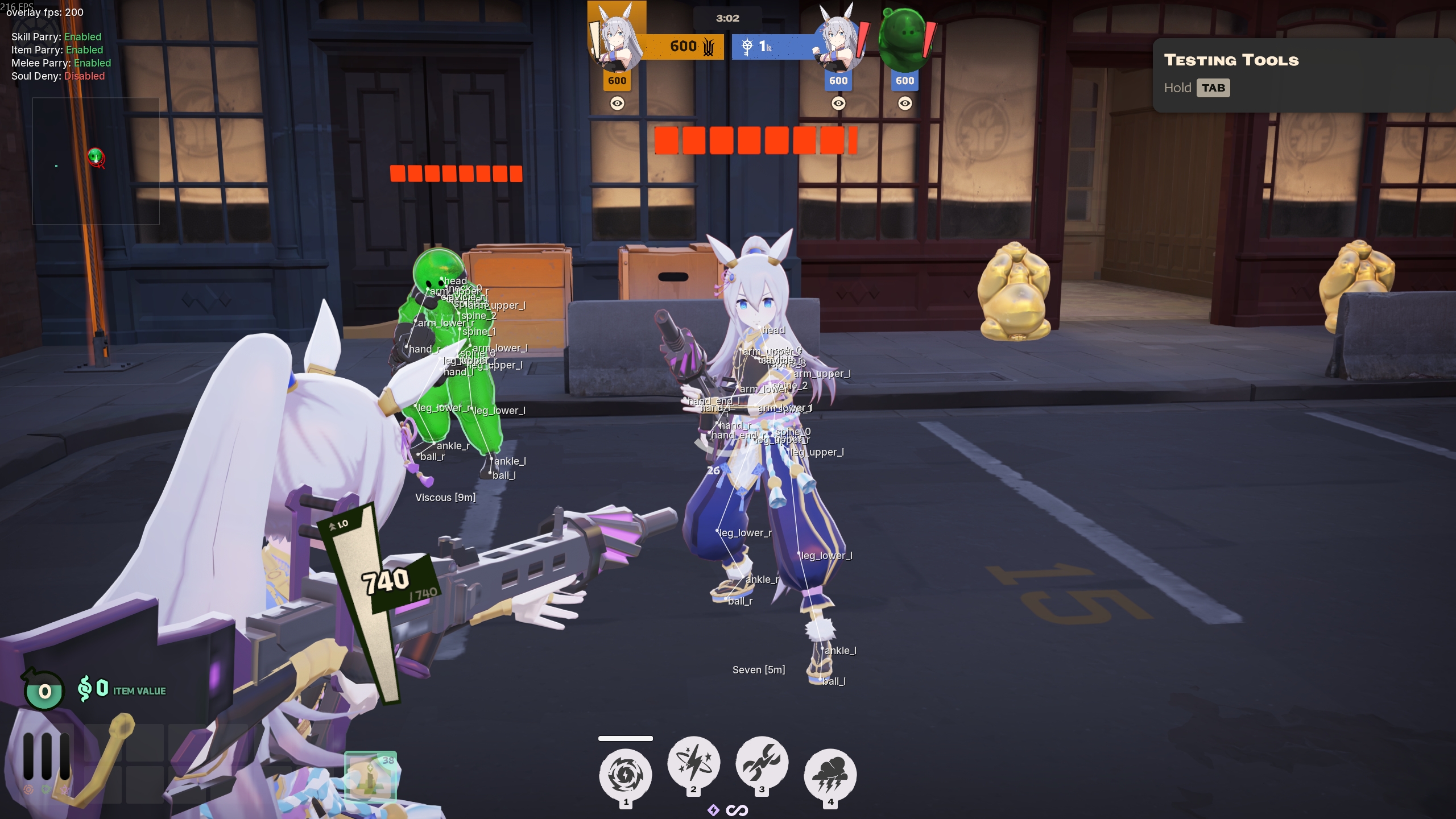
Click to enlarge.
Every joint shows its bone name in real time. Use this to find the right bone name for aim points, hitbox checks or 3D draw calls. Bone names are read from the game files at startup, including custom mods loaded through Deadlock Mod Manager.
To list a hero's bones from a script, call player:bone_names():
for _, name in ipairs(player:bone_names()) do
    print(name)
end
See Types & Constants > bone for the full list of named aliases and body-bone constants.
Discovering particle names
The particle event API (on_particle_create, on_particle_destroy) matches against full particle paths like "particles/abilities/melee/melee_heavy_activate_charge.vpcf". To find the path for a specific ability or action, open the Dev Studio window (navbar bug icon) > Particles tab, and enable Console Logging under the Particle Logger card.
It prints every [Particle] Create and [Particle] Destroy event to the in-app console. Useful toggles under Particle Logger:
- Include All Particles: shows every particle in the game, including towers, NPCs, and environment. This is noisy, so turn it off when you have what you need.
- Show Position: adds the world position
(x, y, z)to each log entry, and the four control points (cp0tocp3) when the particle has them. Use this to find which control point holds the data you need.
Workflow
- Enable Console Logging under Particle Logger in Dev Studio.
- Go into a sandbox or private lobby with a friend.
- Perform the action you want to detect (heavy melee, ability cast, etc.).
- Watch the console for
[Particle] Create (enemy tN) 'particles/...'lines. - Copy the relevant part of the path into your
ev.name:find("...")filter.
For a list of commonly used particles, see Events > Common particle names.